
How to use
Broadcasting
Ladiocast makes it possible to broadcast by using just one mic, also advanced audio routing with its mixer.
Notice
Further explanation about how to set up for broadcasting hasn't been described here yet. Some are provided in my blog and as some web contents by others (thank you!).
The audio mixer
The diagram
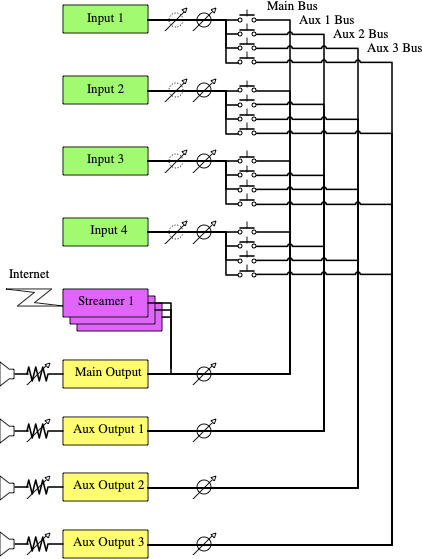
You can set up four audio input devices and four(Main, Aux 1, Aux 2, Aux 3) outputs in the Ladiocast mixer. Audio signals coming from the input devices can be sent to Main and/or Aux buses by button switching. All signal lines have volume sliders on input side and output side.
The total mixer's diagram is as follows:
Volume slider scales
In input volume slider scales, the left end indicates minus infinite dB, the right end the stepper selected dB. In output volume slider scales, the left end indicates minus infinite dB, the right end 0dB.
Preferences
Select “Preferences” in the menu bar to show Ladiocast preferences window.
If you increase the “Sample Frame Length” value, latency in the audio processing of Ladiocast will get longer, the CPU load average will get lower. If you decrease, the latency will get shorter, the load average will get higher.
The “System Sample Rate” is used as internal sample rate. There is possibility to get finer audio processing, which also depends on rates of inputs devices.
The “Number of Streamers”is the maximum streamers available simultaneously. The more number specified, the higher CPU load will get.
To enable new settings, you need to restart the application.